







FAQs: WeatherLink Live
General
No. The WeatherLink Live does not support a cabled sensor suite. However, our Vantage Pro2 (w/ USB datalogger), Vantage Connect and EnviroMonitor products do support cabled sensor suites and will push data to the WeatherLink cloud.
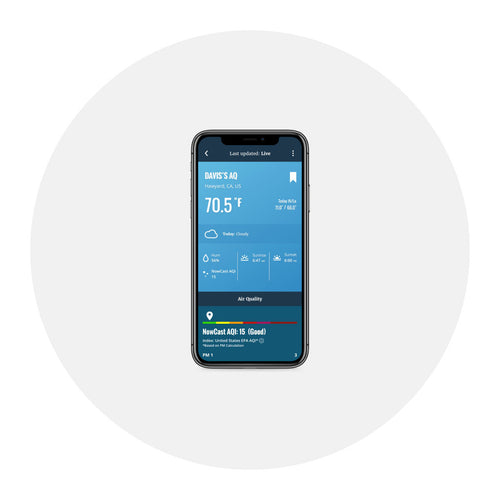
Normally the WeatherLink Live will update current conditions every 1 minute. The WeatherLink Live will go into “Live mode” if the device (phone or tablet) using the WeatherLink app is on the same LAN (local area network) and subnet as the WeatherLink Live device. When it is in Live mode you will see “Last updated: LIVE” at the top of your screen and the wind speed data will update every 2.5 seconds and the rain and rain rate will update every 10 seconds.
The WeatherLink Live can accept data from 8 stations (including Integrated Sensor Suites), but only one can be the Primary Station.
The data from the Primary Station is used for calculated values like wind chill, dew point, etc.
For Weatherlink Live, when there is no wind speed value, the device does not update the wind direction. In the Weatherlink.com bulletin page, you would see the wind direction indicator disappear entirely. When this occurs, you can always check to see what the last indicated direction was, but technically without any wind at all, there is no direction.
Configuration
In the WeatherLink app, tap the Account icon at the top of the home screen. Tap Units to change them.
If using a Wi-Fi connection:
- Check to make sure you entered the correct Wi-Fi password.
- Make sure you are connecting the WeatherLink Live to a 2.4 GHz network. It will not connect to a 5 GHz network.
If using an Ethernet connection:
- Reseat the Ethernet cable.
- Plug the Ethernet cable into a different jack on the router.
- Try a different cable.
Yes, but repeaters must be configured on the mobile app only
- In the Weatherlink app tap the Account icon at the top of the home screen.
- Scroll down to your Weatherlink Live's name.
- Tap the > next to it.
- Tap Configure Stations
- Tap "Edit" on your station
- Tap "Advanced Settings"
- Tap "Repeater"
The WeatherLink Live can support a separate Wind Transmitter.
If this is the only wind device and you want to have it show as the main wind device, you would need to do the following.
Log into the WeatherLink.com website. Then, click on the Wrench icon , then click on "Device Configuration"

You should see something similar to:

You then want to select the PRIMARY weather station and hit EDIT.
You need to make sure that you have WIND selected.

This sounds backwards, but if you do not, you will not see the correct options under advanced Setting in the next step
Click on "Advanced Settings".

You will then see a setting similar to

You want to change this to be as the following

Then hit BACK and then save when prompted to.
No it will not. When configuring your network settings using the WeatherLink App there is no provision for configuring it to use a proxy server.
WeatherLink Live ports
The WLL uses the following ports:

The WLL DOES NOT require any inbound ports to be whitelisted in the firewall. To connect to Davis servers, it only needs the ability to make outbound connections on port 5621 and to make DNS queries on port 53.
Existing WeatherLink USB/Serial data logger users can easily upgrade to a WeatherLink Live and import your historical sensor data from your WeatherLink Computer Software to the WeatherLink Cloud. Doing so will combine your historical sensor data with the new data from the WeatherLink Live.
The process is simple:
- Purchase the WeatherLink Live and use the WeatherLink app to install all of the sensors currently connected to the USB or Serial dta logger. Watch WeatherLink Live: From Box to Setup video here:
- Log into WeatherLink.com
- With the side-bar menu open, click the wrench icon.
- Select your WeatherLink Live device if not already selected
- Under "device", click the "Import" tab.
- Confirm your WeatherLink Live Settings and click "Start Import"
- Follow steps 1-4 (see example of steps in the pictures below). Be sure to follow the directions closely to ensure an accurate import of data.
Once the import is complete, you will receive confirmation that your data has been successfully imported via email.
Please note: WeatherLink Live is not compatible with WeatherLink Computer Software. If you would like to continue using the WeatherLink Computer Software, you can keep your current data logger system installed and additionally use WeatherLink Live.


You will need to update your app from the iOS App Store or from Google Play. Previous versions of the app did not support WeatherLink Live.
The archive rate is the frequency at which data records are stored in your weather database on the WeatherLink cloud. It does not affect the update frequency of current conditions and the live data display.
To change your archive rate:
- In the WeatherLink app tap the Account icon at the top of the home screen.
- Scroll down to your WeatherLink Live's name.
- Tap the > next to it.
- Tap Configure Stations.
- Tap Edit next to your WeatherLink Live's name.
- Tap Archive Rate, and choose the rate your prefer 1, 5, 15, 30, 60 or 120 minutes.
To change your archive rate to 1 or 5 minutes you will need to purchase an upgrade by following the steps below:
- Log into your account on WeatherLink.com
- On the right-hand side of your account page, under your name, click "Purchase Upgrade" and follow the prompts to purchase a Pro (for 5-minute archive intervals) or Pro+ (for 1-minute archive intervals) device upgrade subscription.
- With your WeatherLink Live selected as the "current station," click Device Tier at the top center of the page and apply the Pro device upgrade to your WeatherLink Live.
- Click the Tools icon, then choose Device Configuration.
- In the top box on the next screen, click Edit Settings. Choose 1 or 5 minutes in the Archive Rate menu.
- Click save.
If your station is not showing up on the map at weatherlink.com, there are a few things to check.
- Make sure your station is set to "Public" rather than "Private".
- Make sure your station type is set to "Vantage Pro2/Vantage Vue" rather than "Sensor Transmitter".
- Click the wrench icon then "Edit Location" and make sure your location is set correctly.
- Make sure the weather station is reporting temperature.


Data
Check the WeatherLink Live’s transmitter IDs and any sensor suite transmitter IDs. They must be the same for the WeatherLink Live to hear the sensor suite data.
Check that the station type configured for that ID is correct.
On top of this, there could be a frequency mismatch going on. When first setting up the Weatherlink Live, and you are selecting the initial location for the device on the map, you MUST select the same country that you purchased your Weather station in (or for). This is because the frequency profiles for the Vantage style weather stations differ, depending on which country it was created for. The Weatherlink Live however, has EVERY frequency needed, already built in, but it can only use one of them at a time. This is dictated by the original location that was set when first installing the device.
- The way to correct this issue is to delete the Weatherlink Live from your account, reinstall it, then pick the correct country that matches where your weather station was built for. Then, once the station is running, you can edit the location pin to wherever in the world you like. Depending on which direction timezone-wise you move the pin, the device may go quiet until the time difference corrects itself. This is because the servers only want a single version of each timestamped datalog. Duplicates are ignored.
When your tablet or phone using the WeatherLink app is on the same LAN (local area network) as your WeatherLink Live you’ll see “Last updated: LIVE” at the top of your screen indicating that data is being updated rapidly.
Electrical
No. Batteries are not required for it to operate. However, it is highly recommended that you install batteries to prevent loss of data if AC power is lost.
When AC power is lost, if the WeatherLink Live has 4 AA backup batteries, it will stop trying to communicate with your network but will continue (on battery power) to receive sensor suite weather data and store it. When AC power has resumed it will get back on the network and send the records it stored during the outage up to your database in the WeatherLink cloud.
Approximately 13 days.