







FAQs: AirLink
General
Make sure the sensor is powered up and connected to the internet.
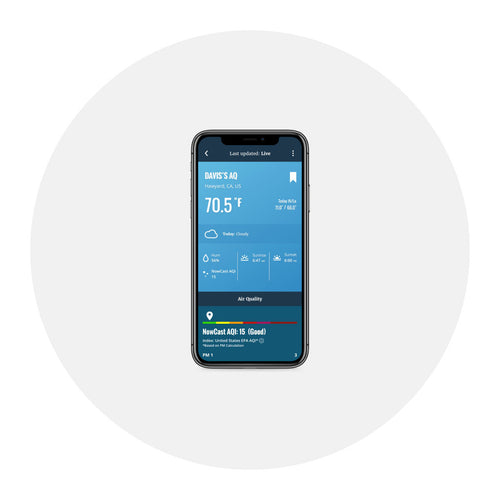
You can use AirLink with an existing Davis system that is uploading to the WeatherLink Cloud. Your air quality will appear on your WeatherLink.com bulletin page as well as on your WeatherLink app. (It will not appear on your Vantage Pro2 or Vantage Vue console.)
Configuration
You may have an older version of the app. Please download the latest version from iOS App Store or Google Play Store.
The archive rate is the rate at which archive data is permanently stored on the WeatherLink Cloud. (It does not affect the update rate for current conditions.) The default setting for AirLink’s archive rate is 15 minutes. You can change this to 1 or 5 minutes by purchasing an annual device upgrade subscription for your AirLink. You can select 30- or 60-minute archive rates without upgrading. You can change your archive rate on the WeatherLink app or on WeatherLink.com.
Note: If you are using AirLink with a WeatherLink Live or EnviroMonitor system that has already been upgraded, it will also be upgraded. You do not need to purchase another upgrade.
To edit your AirLink’s device information (name, indoor or outdoor use, or location), open your WeatherLink.com page and click on the wrench icon under you name on the righthand side of the bulletin. (If your AirLink is part of an existing system, click the ^ next to the system’s name to open it.) Click the name of your AirLink to open the Device Info page. After making your changes, click Save.

Check to make sure you entered the correct Wi-Fi password. You may have entered the wrong password: repower the AirLink and try reconfiguring Wi-Fi in the app.
Display
The BLE may have “gone to sleep.” To reset, insert a paper clip into the reset button access on the front of the sensor housing. If the LED still does not come on, make sure your AirLink is connected to AC power. (Unplugging the device from AC power will also reset it, however this will cause any stored archive data to be lost. Since data is uploaded as soon as it is generated when connected to Wi-Fi, this will only be a problem if the device has not been connected to Wi-Fi for some time.)
